Journey for Claude
Build a Journey room from a chat
Ask Claude for a proposal, a pitch or a follow-up. It writes the room, puts it in Journey, and hands you a share link you can send.
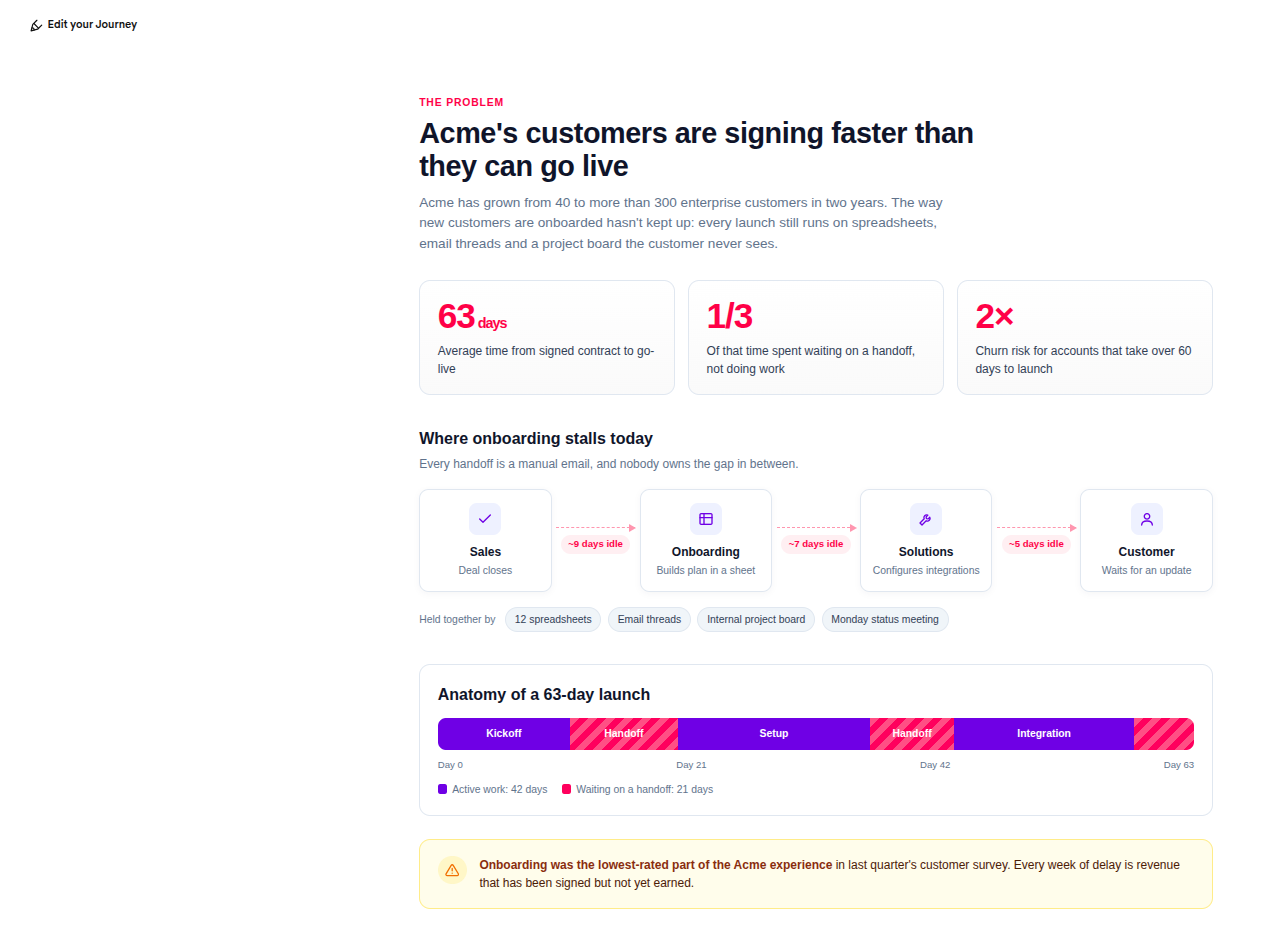
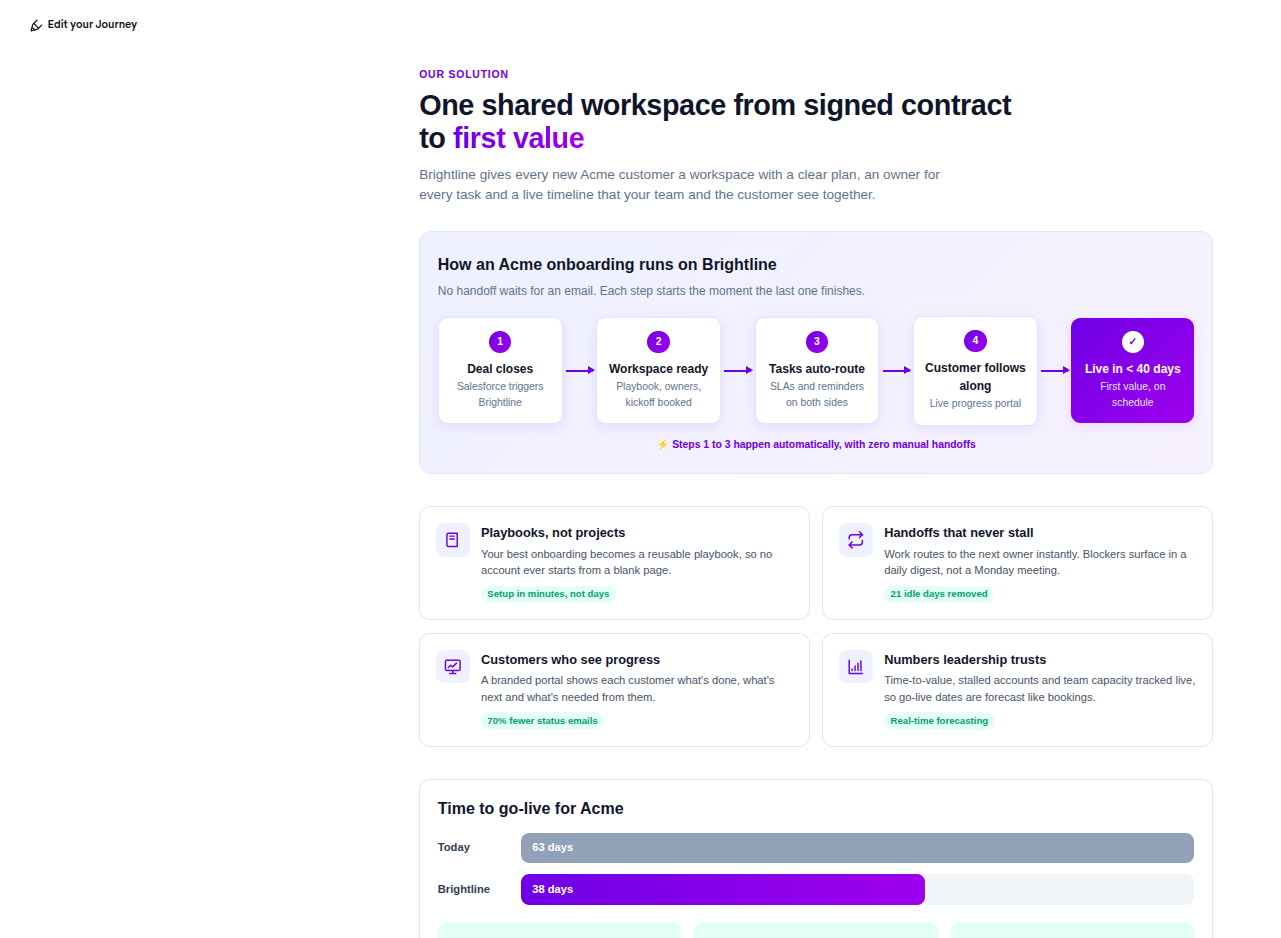
Two steps of a pitch built from one request. Claude wrote the copy, the statistics, the process diagrams and the timeline charts.
Nothing is created without you seeing it first, and everything lands in your own Journey account, in the organisation you choose.
Before you start
You need a Journey account. That is all — there is no second password and no separate sign-up. Claude sends you to Journey's own login page, and Journey tells Claude who you are.
You also need Claude on a plan that allows custom connectors. If you cannot find the Connectors screen below, that is usually why.
Set it up
About two minutes, once.
-
Open connector settings
In Claude, go to Settings → Connectors. Scroll to the bottom and click Add custom connector.
-
Fill in two fields
Field What to type Name JourneyMCP server URL https://mcp.jny.io/mcp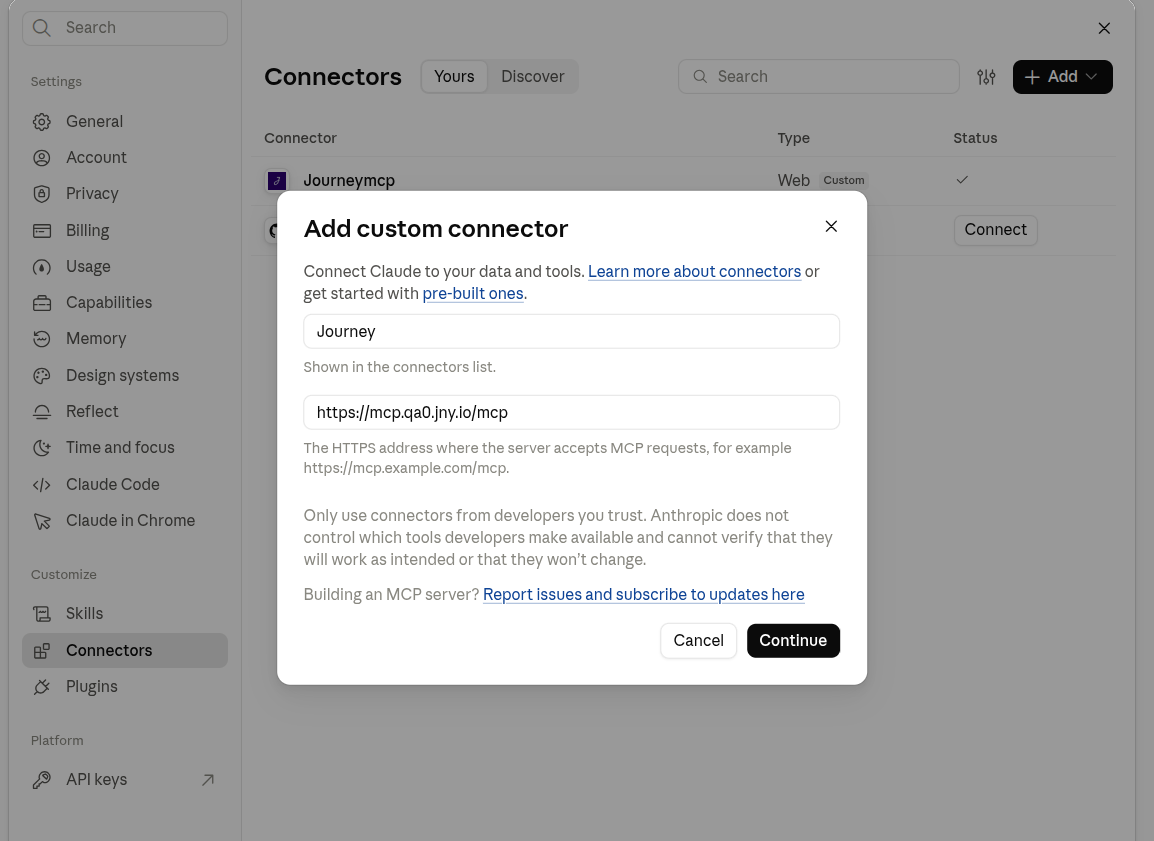
Adding Journey as a custom connector in Claude's settings. Leave everything else as it is and click Continue. Journey appears in your list, marked as not connected.
-
Sign in
Click Connect next to Journey. Journey's own login page opens — the same one you use for the dashboard. Sign in with your email and password, or with Google or Microsoft.
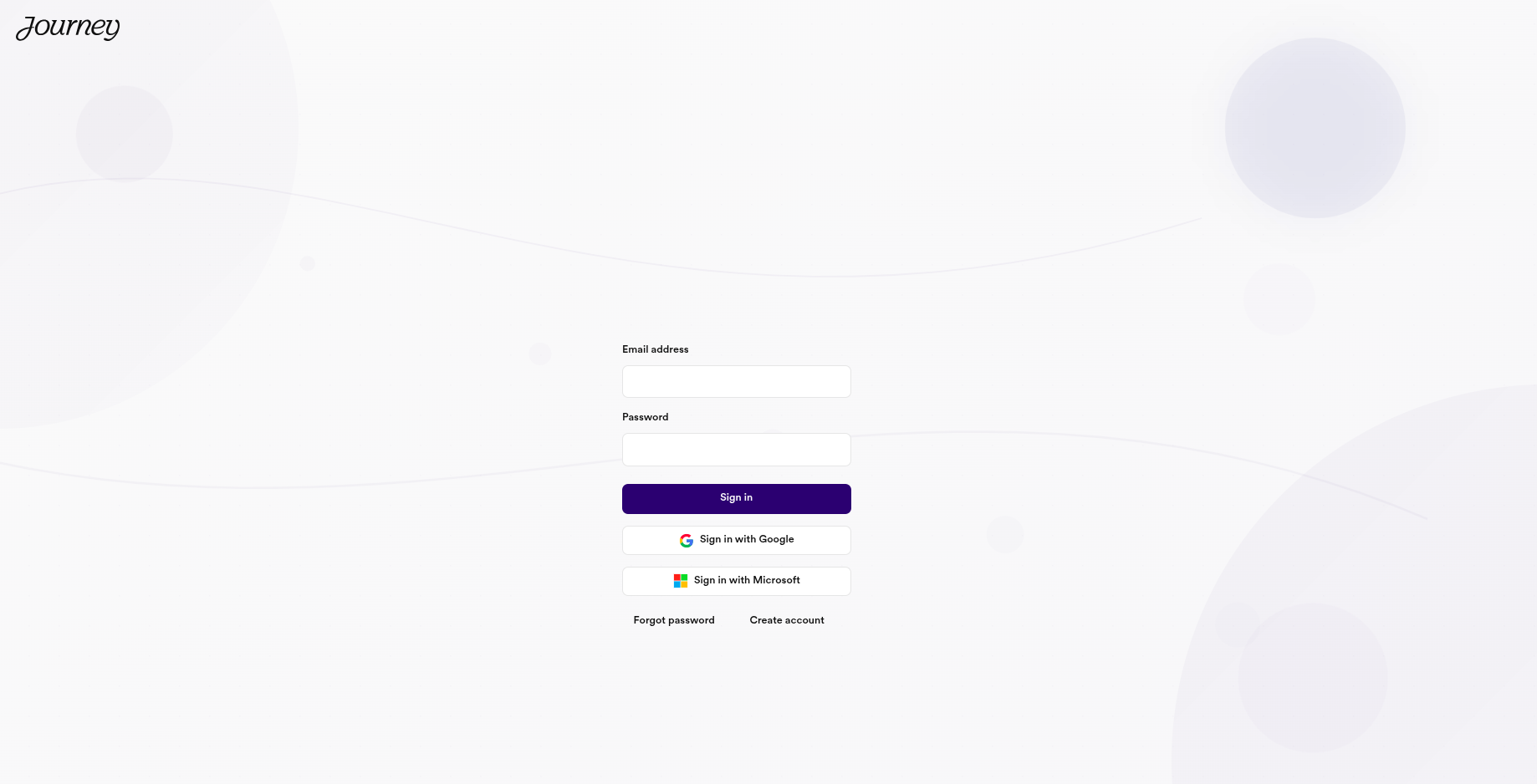
Journey's own login page — the same one you use for the dashboard. If you are already signed in to Journey in that browser, this step passes by without asking for anything.
-
Allow access
Claude asks whether to let it use your Journey account. Click Allow. You land back in Claude and Journey shows as connected.
Check it worked
Ask Claude:
It should answer with your name, your email, and the organisations you belong to. If it does, everything is working.
Next
What to ask for →
Build, share, track and edit a room in ordinary sentences.
Adding files →
Put your own images, PDFs and video into a room.
Your account and your data
Your password stays with Journey. You sign in on Journey's own login page. Claude never sees your password.
Claude sees what you see. Rooms, library content and share links in the organisation you are working in — the same things you can reach in the dashboard. Not billing, not account settings, not anybody else's account.
One organisation at a time. If you belong to more than one, Claude works in the one you choose. Work in one cannot touch the other.
You can disconnect whenever you like. Settings → Connectors → Journey → Disconnect. Anything you already made stays in Journey, exactly as if you had built it by hand.